
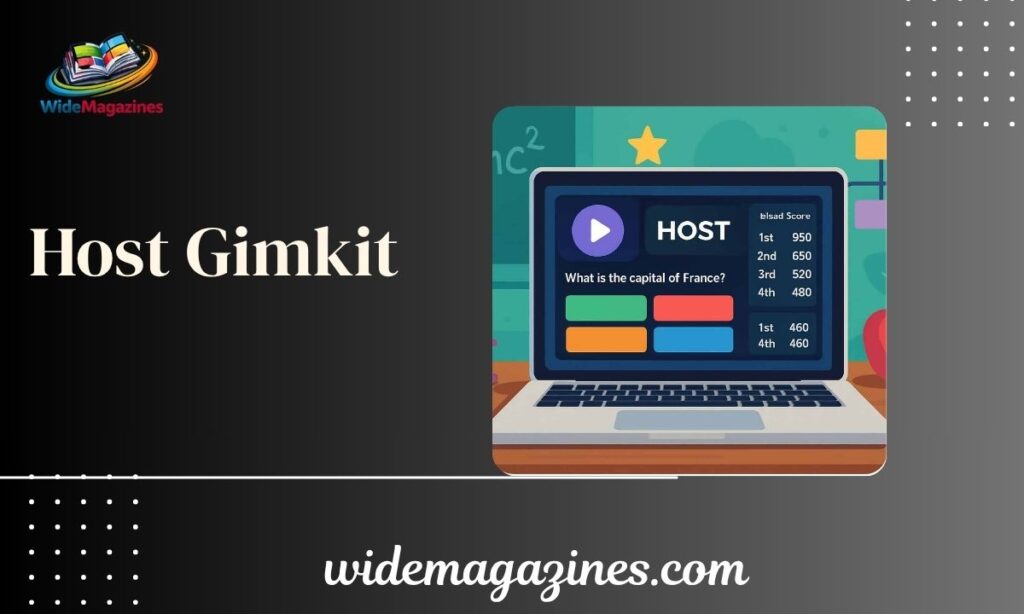
Gimkit has become one of the most popular game-based learning platforms for classrooms. It transforms traditional quizzes into interactive competitions where students earn virtual money, unlock upgrades, and stay engaged throughout the lesson. Unlike standard review activities, Gimkit combines learning with strategy, making it easier for teachers to increase participation and knowledge retention.
If you are new to hosting Gimkit games, the process is straightforward. From creating your first account to analyzing student performance reports, this guide covers everything you need to know. Whether you teach elementary, middle school, high school, or online classes, learning how to host Gimkit can make classroom review sessions more exciting and effective.
What Is a Gimkit Host?
A Gimkit host is the person who creates, manages, and controls a live Gimkit game. In most cases, the host is a teacher, tutor, trainer, or homeschool instructor.
As a host, you can:
- Select a quiz set (called a Kit)
- Choose a game mode
- Customize game settings
- Share a game code with students
- Monitor progress in real time
- Review reports after the game
The host controls the entire learning experience, ensuring that the game aligns with classroom objectives and student needs.
How to Create Your Gimkit Account
Creating a Gimkit account only takes a few minutes.
Step-by-Step Account Setup
- Visit the Gimkit website.
- Click Sign Up.
- Choose Google Sign-In or Email Registration.
- Select “Educator” as your account type.
- Complete the profile setup process.
Most new educator accounts receive access to a free trial before moving to the basic free plan. This allows teachers to explore premium features before deciding whether to upgrade.
Why Create a Teacher Account?
A teacher account allows you to:
- Create custom quizzes
- Host live games
- Assign homework activities
- Track student performance
- Access classroom analytics
How to Build a Kit (Your Question Set)
A Kit is the collection of questions students answer during gameplay.
Creating Your First Kit
After logging into your dashboard:
- Click New Kit.
- Add a title.
- Select the subject area.
- Choose your preferred language.
- Start adding questions.
You can create questions manually or import existing content.
Ways to Build a Kit
| Method | Description |
| Manual Creation | Write your own questions and answers |
| Quizlet Import | Import existing Quizlet sets |
| Spreadsheet Import | Upload questions from spreadsheets |
| Public Library | Modify publicly available Kits |
| AI Generator | Generate questions automatically |
Many teachers use a mix of these methods to save time while maintaining content quality.
Best Practices for Kit Creation
- Use clear language.
- Keep answer choices concise.
- Include curriculum-aligned questions.
- Mix easy and challenging questions.
- Review questions before launching.
How to Host a Live Gimkit Game (Step by Step)
Hosting a live game is the core feature of Gimkit.
Step 1: Choose Your Kit
Open your dashboard and select the Kit you want to use.
Step 2: Click “Play Live”
Click the green Play Live button beside your selected Kit. This opens the Game Mode Picker.
Step 3: Select a Game Mode
Browse available game modes and choose one that matches your lesson goals.
Step 4: Configure Game Settings
Adjust options such as:
- Time limits
- Join permissions
- Nickname generator
- Game objectives
- Late joining rules
Step 5: Share the Game Code
Students can join by:
- Entering the game code
- Scanning a QR code
- Using a direct join link
Step 6: Start the Game
Once all students have joined, click Start Game to begin.
Live Hosting Process Overview
| Step | Action |
| 1 | Select a Kit |
| 2 | Click Play Live |
| 3 | Choose a Mode |
| 4 | Configure Settings |
| 5 | Share Join Code |
| 6 | Start Game |
| 7 | Monitor Students |
| 8 | Review Reports |
Choosing the Right Game Mode
Game mode selection can significantly affect student engagement.
Different modes support different teaching goals.
Popular Gimkit Game Modes
| Game Mode | Best For |
| Classic | Quick review sessions |
| Snowbrawl | Competitive gameplay |
| Trust No One | Teamwork and deduction |
| The Floor Is Lava | Fast-paced learning |
| Fishtopia | Exploration and strategy |
| Tag: Domination | Collaborative competition |
How to Choose the Best Mode
Consider:
- Student age group
- Learning objectives
- Class size
- Available class time
- Technical requirements
For first-time hosts, Classic mode is usually the easiest starting point. More advanced modes can be introduced once students understand the platform.
Managing the Game as a Host
Once the game starts, the host dashboard becomes your control center.
Features Available During Gameplay
- Real-time leaderboard
- Student participation tracking
- Accuracy monitoring
- Player management
- Sound and music controls
- Game timer adjustments
Teachers can pause discussions, answer questions, and monitor classroom performance without disrupting the game flow.
What to Watch During the Game
Focus on:
- Students falling behind
- Frequently missed questions
- Engagement levels
- Technical issues
- Classroom behavior
Real-time insights help teachers provide support exactly when students need it.
Reviewing Results After the Game
The learning does not end when the game finishes.
Gimkit provides detailed reports that help teachers understand student performance.
Information Included in Reports
- Individual scores
- Class averages
- Question accuracy
- Response trends
- Participation rates
Why Reports Matter
Reports help teachers:
- Identify learning gaps
- Plan future lessons
- Measure understanding
- Provide targeted feedback
- Track academic growth
Using performance data regularly can improve instruction and help students focus on areas needing improvement.
Free Plan vs. Gimkit Pro
Many teachers begin with the free version before upgrading.
Gimkit Basic vs. Gimkit Pro
| Feature | Basic | Pro |
| Live Games | Yes | Yes |
| Student Reports | Yes | Yes |
| Featured Modes | Yes | Yes |
| All Game Modes | No | Yes |
| Assignments | Limited | Full Access |
| Image Uploads | Limited | Yes |
| Audio Questions | No | Yes |
| Advanced Features | No | Yes |
Which Plan Should You Choose?
The Basic plan works well for occasional classroom use.
Teachers who host games frequently, assign homework, and want access to all game modes often find Pro offers better long-term value.
Tips to Make Your Gimkit Sessions Better
Successful hosts focus on both engagement and learning outcomes.
Practical Hosting Tips
- Test your Kit before class.
- Use at least 20–30 questions for longer games.
- Match game modes to lesson objectives.
- Encourage healthy competition.
- Display the leaderboard when appropriate.
- Review difficult questions afterward.
- Use reports to guide future instruction.
- Gather student feedback regularly.
Common Mistakes to Avoid
- Using too few questions
- Choosing overly complex game modes for beginners
- Ignoring post-game reports
- Starting without testing the Kit
- Focusing only on competition instead of learning
Teachers who balance fun with educational goals often achieve the best results. Community feedback also suggests that larger question banks improve learning outcomes because students receive more repetition and review opportunities.
Conclusion
Hosting a Gimkit game is one of the easiest ways to turn classroom review into an engaging learning experience. With just a few steps, teachers can create Kits, choose exciting game modes, monitor student progress, and analyze detailed performance reports. Whether you use the free version or upgrade to Pro, Gimkit offers powerful tools for increasing student participation and making lessons more interactive.
Start with a simple Kit, experiment with different game modes, and use the reporting tools to improve future lessons. As you gain experience, hosting Gimkit games will become a valuable part of your teaching strategy.
Frequently Asked Questions
What Is a Gimkit Host?
A Gimkit host is the teacher or instructor who creates, manages, and controls a live Gimkit game session.
Is Gimkit Free for Teachers?
Yes. Gimkit offers a free Basic plan that allows teachers to host games and access core features.
How Do Students Join a Gimkit Game?
Students visit the join page, enter the game code, scan a QR code, or click a direct join link shared by the host.
Can I Use Gimkit for Remote Learning?
Yes. Teachers can share game codes through video conferencing tools, email, or learning management systems.
What Is a Kit in Gimkit?
A Kit is a collection of questions that students answer during a live game or assignment.
Which Gimkit Game Mode Is Best for Beginners?
Classic mode is usually the best choice for new hosts because it is simple and easy to manage.
Does Gimkit Provide Student Performance Reports?
Yes. Gimkit generates reports that show scores, accuracy rates, and learning trends after each game.
Is Gimkit Better for Review or Assessment?
Gimkit works best as a review and reinforcement tool, though many teachers also use it for formative assessment.

Pastor John is a devoted spiritual guide with years of experience in ministry and prayer teaching. Passionate about helping others grow in faith, he shares practical insights, prayer guidance, and reflections from the Prayer to inspire a closer relationship with God.